Table of Contents
DigiLocker: Store and Share Documents 2026
Reviewed on 2026-06-20 by Dr. Shrawan Kumar Pathak.
Quick Reply: Think of DigiLocker as a government-issued wallet, not a photo album. Sign up free on the app or digilocker.gov.in with your mobile or Aadhaar number plus an OTP, set a 6-digit PIN, then fetch documents straight from the issuing office. A fetched, signed copy counts as an original.
The wallet, not the photo album
Most people treat DigiLocker like a photo album: they scan their marksheet, upload the picture, and feel safe. That is the wrong mental model, and it is why so many citizens get turned away at a counter.
DigiLocker has two shelves. One shelf holds issued documents, which the issuing office itself pushes into your account, already digitally signed. That is the original, handed to you across the counter, except it never tears, fades, or gets lost. The other shelf holds uploaded documents, which are scans you make yourself. Those are photocopies. A photocopy is handy, but no clerk treats your photocopy as proof.
So the whole skill of using DigiLocker well is simple: keep what matters on the issued shelf, and stop relying on the uploaded one.
Set up your wallet in five minutes
You do not need to visit anyone. The four official steps are register, verify, fetch, and share.
Step 1: Register and lock the wallet
Open the DigiLocker app or go to digilocker.gov.in and tap sign up. Enter your mobile number or your 12-digit Aadhaar number. You will get a one-time password (OTP) on your phone. Type it in.
Then set a 6-digit security PIN. Treat this PIN like the key to a real wallet, not like a password you reuse everywhere. Anyone with your PIN can open every document inside, so never share it, and never let a shop “help” you log in.
Step 2: Verify with Aadhaar so the originals can arrive
Linking your Aadhaar is the step that turns your empty wallet into a useful one. Aadhaar verification lets the issuing departments match you to their records and slot the right originals onto your issued shelf. Without it, you only get the photo-album shelf. Aadhaar verification uses an OTP from UIDAI, so keep the phone linked to your Aadhaar handy.
Step 3: Fetch the originals, do not scan them
In the search box, pick the issuer (for example your board, your transport department, or your PAN issuer) and the document type. DigiLocker pulls a freshly signed copy from that department. This is the move that matters: a fetched marksheet is an original, while a photo of the same marksheet you uploaded is not.
The official platform now lists over 70 crore registered users and over 850 crore issued documents, so the chance that your document already exists on the issued shelf is high. Fetch first, scan only as a last resort.
Step 4: Mind the two storage shelves
Your self-uploaded scans share a free cloud space of about 1 GB. Verify the current figure on digilocker.gov.in, since it can change. The good news is that issued documents do not eat into that 1 GB at all, because they live as a signed link to the issuer, not as a heavy file. So a wallet full of originals stays light. Fill it freely.
Why an issued copy counts as the original
This is the part counters argue about, so know your ground. An issued DigiLocker document is treated at par with the original physical document under Rule 9A of the Information Technology (Preservation and Retention of Information by Intermediaries Providing Digital Locker Facilities) Rules, 2016, an amendment notified in February 2017 under the Information Technology Act, 2000.
In plain words: the law says a government office or a private verifier must accept your issued DigiLocker copy the same way it accepts the paper. Note the catch in the analogy. The rule protects the original on the issued shelf, not the photocopy on the upload shelf. If you only uploaded a scan, you have no such backing.
If a clerk refuses an issued document, that refusal, not the document, is the problem. You can show the digital signature on the copy and, if they still refuse, escalate through their grievance channel.
Share without handing over the whole wallet
You never need to give anyone your login. To share one document, open it and choose how to pass it across the counter.
- QR code. The verifier scans it. This works even if the verifier has no internet at that moment, which suits a physical office or a campus desk.
- Secure link. DigiLocker sends a link by WhatsApp or email, protected by an OTP delivered to your phone. The receiver opens only that one document, never your account.
Either way the verifier can check the issuer and the digital signature to confirm the copy is genuine. You can also e-sign declarations and forms digitally; see our guide on how to e-sign a document legally.
DigiLocker also pairs neatly with other identity tools. Many people keep their Aadhaar PVC card details and their ABHA health ID handy, run Aadhaar tasks through the mAadhaar app, and pull their fetched documents when they book a government hospital appointment.
When a document refuses to fetch
A failed fetch is almost never a DigiLocker fault. It is usually a mismatch on the issuer's side: your name spelt differently, a wrong date of birth, or a document number the department typed in oddly years ago. DigiLocker is only the messenger.
So the fix is on the source side. Correct the record at the issuing office first, then fetch again. If the issuing department drags its feet or refuses to correct an obvious error, that department, not DigiLocker, is who you escalate against, through their public grievance portal or a formal RTI request for the status of your correction.
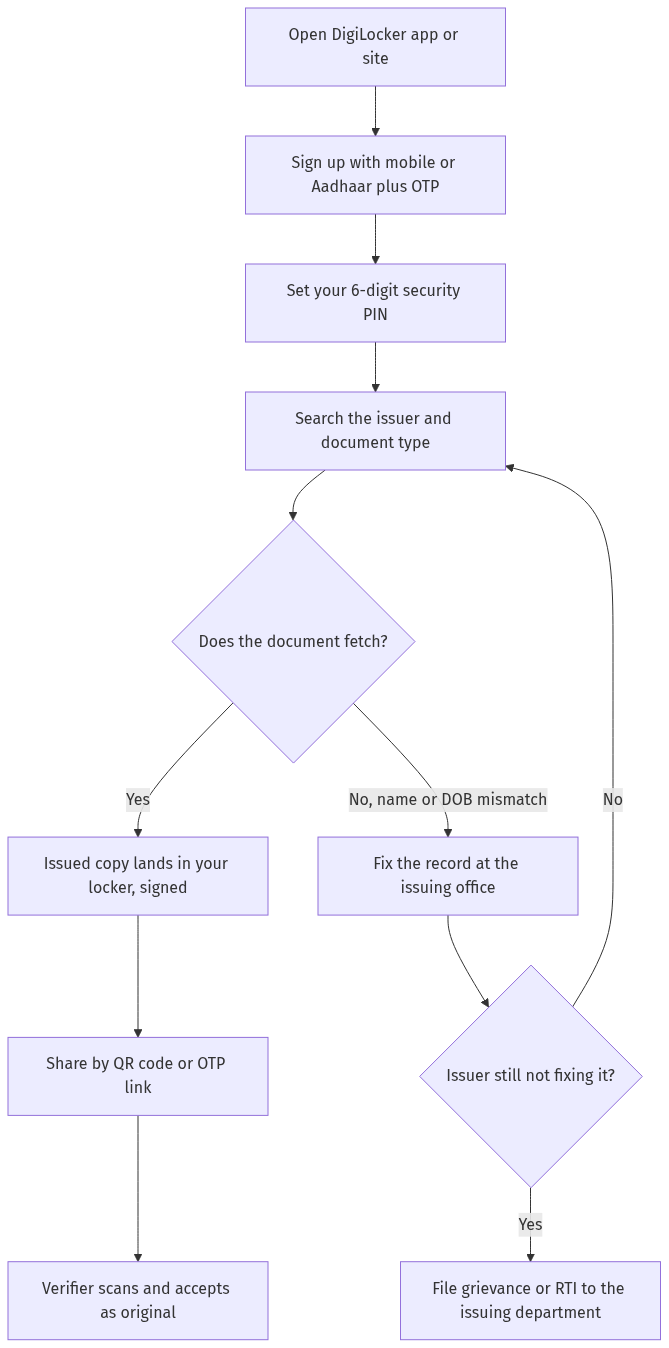
Figure: step-by-step flow. If a step stalls, use the grievance or RTI route shown.
Frequently asked questions
Is a DigiLocker document valid as an original?
Yes, but only an issued one. A document pulled straight from the issuing department and digitally signed is treated at par with the physical original under Rule 9A of the 2016 Digital Locker Rules. A scan you uploaded yourself is just a photocopy and carries no such status.
Do I have to give Aadhaar to use DigiLocker?
You can sign up with a mobile number, but linking Aadhaar is what lets departments push your real originals onto the issued shelf. Without Aadhaar verification you are limited to uploading your own scans, which clerks may not accept.
How much can I store in DigiLocker?
Self-uploaded scans share a free space of roughly 1 GB; verify the current figure on digilocker.gov.in. Crucially, issued documents do not count against that limit, so you can keep many originals without filling your quota.
Is it safe to share my DigiLocker document by link?
Yes, sharing one document is safe because the receiver opens only that file, never your account. The link is protected by an OTP sent to your phone. Never share your 6-digit PIN or let anyone log in on your behalf.
A document will not fetch into my locker. What do I do?
This is usually a mismatch in the issuer's records, not a DigiLocker bug. Get your name, date of birth, or document number corrected at the issuing office, then fetch again. If they refuse to fix a clear error, escalate to that department's grievance portal or file an RTI.
Can I delete or replace an issued document?
You cannot edit an issued document, because it is the issuer's signed original, not yours to change. You can re-fetch a fresh copy after the issuer updates their record. You can freely delete or replace your own uploaded scans.
Does DigiLocker work without internet?
You need internet to fetch and to open most documents, but a QR code you generated can be scanned by a verifier even if the verifier has no connection at that moment, which helps at physical counters.